Top General theory
Describe the rendering process in the browser.
The rendering process in a browser involves several steps to convert HTML, CSS, and JavaScript into the visual output that users see on their screens. The key steps are:
- Document Object Model (DOM) Construction:
The browser parses the HTML to create a DOM tree, which represents the structure of the document. - CSSOM Construction:
CSS files are parsed to create the CSS Object Model (CSSOM), which is a tree that represents the styles applied to the elements in the DOM. - Render Tree Construction:
The browser combines the DOM and CSSOM to create the render tree. The render tree contains the visual representation of the document, including the elements and their computed styles. - Layout:
The browser calculates the positions and sizes of elements in the render tree, a process known as layout or reflow. - Painting:
The browser paints the visual elements onto the screen, converting the render tree into pixels. - Compositing:
If there are overlapping elements, layers are created and composited together to form the final image displayed to the user. This process is repeated whenever there is a change in the DOM or CSS that affects the visual representation, such as resizing the window, adding/removing elements, or changing styles.
What is an interpreted programming language?
An interpreted programming language is one where the source code is executed directly by an interpreter rather than being compiled into machine code beforehand. The interpreter reads the code line by line and translates it into actions or further intermediate code at runtime.
Characteristics:
- Platform Independence: Interpreted languages often run on any platform with the appropriate interpreter.
- Slower Execution: Since code is translated on the fly, interpreted languages tend to be slower than compiled languages.
- Easier Debugging: Errors are often reported line by line, making debugging easier.
Examples:
JavaScript, Python, Ruby, PHP.
What is the Critical Rendering Path? How does rendering work in the browser?
The Critical Rendering Path is the sequence of steps the browser takes to render a page and make it visible to the user. It is critical because it determines how quickly a page can be rendered and is therefore important for optimizing web performance.
Steps in the Critical Rendering Path:
- HTML Parsing to DOM: The browser starts by parsing HTML to create the DOM tree.
- CSS Parsing to CSSOM: Simultaneously, the browser parses CSS to create the CSSOM.
- Render Tree Construction: The DOM and CSSOM are combined to create the render tree.
- Layout: The render tree is laid out in the viewport, determining the size and position of elements.
- Painting: The visual representation of the elements is drawn onto the screen.
- Compositing: Layers are composited together to form the final rendered page.
Optimizing the Critical Rendering Path is crucial for improving page load times and providing a better user experience.
What is XSS? What types of network attacks are there?
XSS (Cross-Site Scripting) is a type of security vulnerability found in web applications. It allows attackers to inject malicious scripts into web pages viewed by other users. The script then executes in the context of the user’s session, potentially leading to data theft, session hijacking, or defacement of the website.
Types of XSS:
- Stored XSS: The malicious script is permanently stored on the target server (e.g., in a database) and is served to users whenever the affected page is accessed.
- Reflected XSS: The malicious script is reflected off a web server (e.g., in an error message) and is delivered to users through a crafted URL.
- DOM-Based XSS: The vulnerability is within the client-side code and occurs when JavaScript modifies the DOM in an unsafe manner.
Types of Network Attacks:
- SQL Injection: Inserting malicious SQL queries into input fields to manipulate databases.
- DDoS (Distributed Denial of Service): Overloading a server with traffic to render it unavailable.
- Phishing: Tricking users into providing sensitive information by posing as a trustworthy entity.
- Man-in-the-Middle (MitM): Intercepting communication between two parties to eavesdrop or alter the data.
- CSRF (Cross-Site Request Forgery): Forcing a user to execute unwanted actions on a different site where they are authenticated.
What is the difference between SPA and SSR?
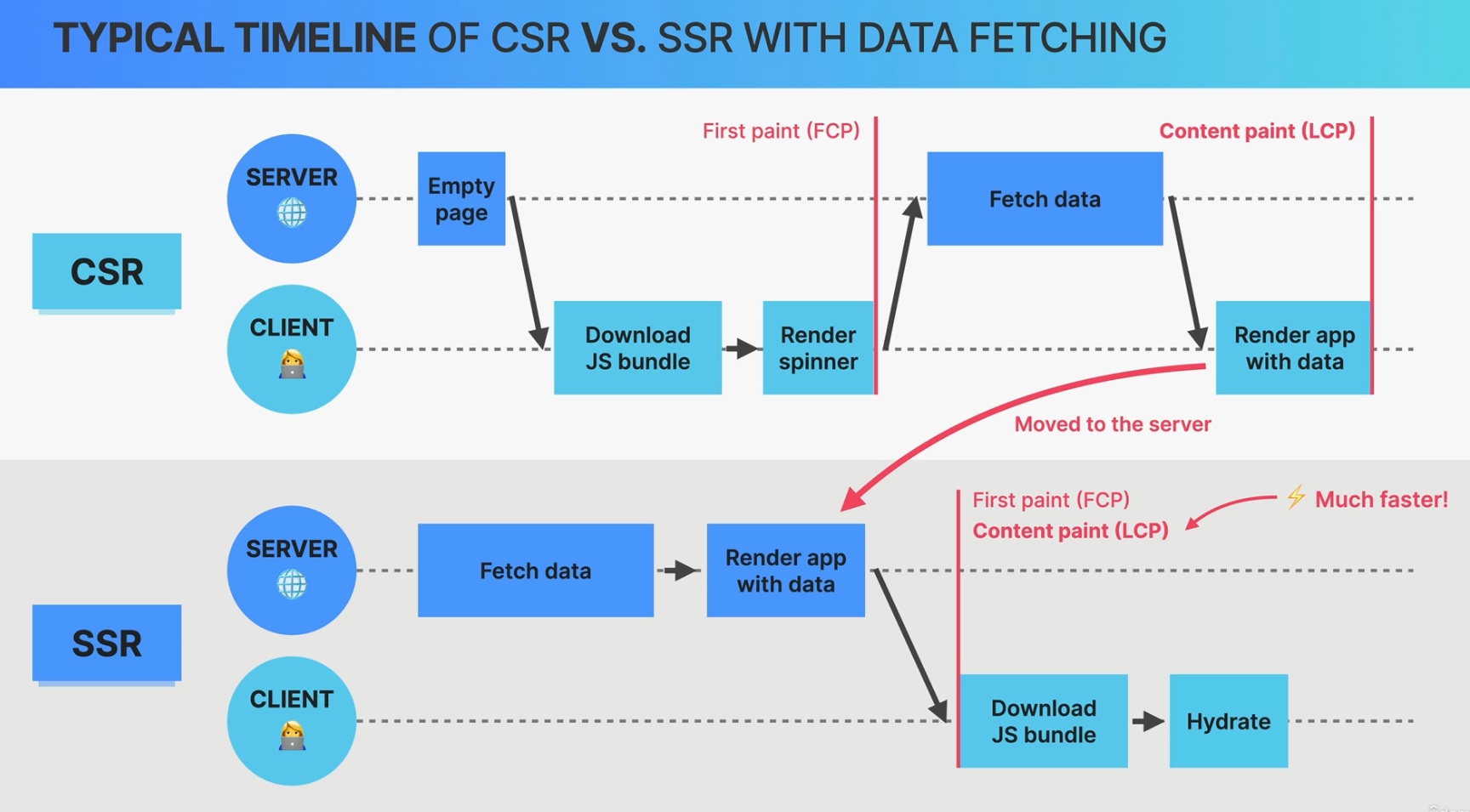
SPA (Single Page Application) and SSR (Server-Side Rendering) are two approaches to web application rendering.
SPA (Single Page Application):
- Rendering: The entire application is loaded initially, and subsequent interactions with the app do not involve loading new pages from the server. Instead, JavaScript dynamically updates the content.
- Performance: Faster subsequent interactions since only data (not full pages) is fetched.
- SEO: Harder to optimize for search engines since content is loaded dynamically, though solutions like pre-rendering exist.
- Examples: React, Angular, Vue.js.
SSR (Server-Side Rendering):
- Rendering: The server generates the full HTML for each page and sends it to the client.
- Performance: Initial load time can be faster because the HTML is pre-rendered, but subsequent interactions may be slower since the entire page reloads.
- SEO: Easier to optimize for search engines since content is delivered as fully rendered HTML.
- Examples: Traditional web frameworks like Express.js, Next.js.
What is Vite?
Vite is a modern build tool and development server for front-end projects. It is designed to be fast and efficient, with features that enhance developer experience.
Key Features:
- Instant Server Start: Vite uses native ES modules and serves source files directly during development, eliminating the need for bundling.
- Hot Module Replacement (HMR): Vite updates modules in the browser in real-time without requiring a full page reload.
- Optimized Builds: When building for production, Vite bundles the code using Rollup, ensuring efficient and optimized output.
- Framework Agnostic: Vite works well with popular front-end frameworks like Vue.js, React, and Svelte.
Vite is particularly known for its fast development feedback loop, making it ideal for modern web development.
What is HTTP?
HTTP (Hypertext Transfer Protocol) is the foundational protocol used on the web for transferring data between a client (usually a web browser) and a server.
Key Concepts:
- Request-Response Model: The client sends an HTTP request, and the server responds with the requested resources (e.g., HTML, JSON) or an error message.
- Stateless: Each request is independent and does not require the server to retain session information between requests.
- Methods: Common HTTP methods include GET, POST, PUT, DELETE, PATCH, and OPTIONS.
- Status Codes: Indicate the result of the HTTP request (e.g., 200 OK, 404 Not Found, 500 Internal Server Error).
HTTP is the protocol that powers the World Wide Web, enabling communication between web clients and servers.
What is a RESTful API?
A RESTful API (Representational State Transfer) is an architectural style for designing networked applications. It uses HTTP requests to perform CRUD (Create, Read, Update, Delete) operations on resources.
Key Principles:
- Statelessness: Each API call is independent and contains all the information the server needs to fulfill the request.
- Client-Server Architecture: The client and server are independent of each other, allowing them to evolve separately.
- Resource-Based: Resources are identified by URIs, and interactions with these resources are performed using standard HTTP methods.
- Representation of Resources: Resources can be represented in multiple formats, such as JSON, XML, or HTML.
- Uniform Interface: REST APIs use a consistent and predictable interface for resource manipulation.
RESTful APIs are widely used in web development for their simplicity, scalability, and performance.
What is serialization and deserialization?
Serialization is the process of converting an object into a format that can be easily stored or transmitted, such as a JSON string or a binary format.
Deserialization is the reverse process, where the serialized data is converted back into an object.
Use Cases:
- Data Transmission: Sending objects over a network as JSON or XML.
- Data Storage: Saving the state of an object to a file or database.
- Interoperability: Exchanging data between different systems or languages.
Serialization is commonly used in APIs to transmit data between a client and a server.
What are HTTP/1, HTTP/2, and HTTP/3? What is the difference between them?
HTTP/1.x:
- The original version of the HTTP protocol.
- Text-Based: Requests and responses are plain text.
- Limitations: Only one request per connection, leading to inefficiencies like head-of-line blocking.
HTTP/2:
- Introduced improvements like multiplexing, where multiple requests can be sent simultaneously over a single connection.
- Binary Protocol: Uses binary framing instead of plain text, improving performance.
- Header Compression: Reduces the size of HTTP headers using HPACK compression.
HTTP/3:
- The latest version, built on QUIC, a transport protocol originally developed by Google.
- UDP-Based: Unlike HTTP/1 and HTTP/2 which use TCP, HTTP/3 uses UDP for faster and more reliable connections.
- Improved Performance: Further reduces latency and improves connection reliability, especially over unreliable networks.
The progression from HTTP/1 to HTTP/3 has focused on improving speed, efficiency, and security for modern web applications.
What is CORS?
CORS (Cross-Origin Resource Sharing) is a security feature implemented by web browsers to control how resources on a web page can be requested from another domain, often referred to as a cross-origin request.
Key Concepts:
- Same-Origin Policy: By default, web pages can only request resources from the same origin (domain, protocol, port). CORS allows exceptions.
- Preflight Request: For certain types of requests, the browser sends an HTTP OPTIONS request before the actual request to check if the server permits it.
- Access-Control Headers: CORS uses these headers (e.g.,
Access-Control-Allow-Origin) to determine whether the cross-origin request is allowed.
CORS is essential for enabling secure cross-origin requests, such as loading resources from a CDN or accessing APIs hosted on different domains.
What are cookies?
Cookies are small pieces of data stored by the browser on the user's device to track and manage user sessions, preferences, and other information across multiple requests and visits.
Key Attributes:
- Name-Value Pair: Each cookie is a small text file with a name and value.
- Expiration: Cookies can have an expiration date, after which they are automatically deleted.
- Domain and Path: Cookies are sent only to requests matching the specified domain and path.
- Secure and HttpOnly: Cookies can be marked as secure (sent only over HTTPS) and HttpOnly (not accessible via JavaScript).
Cookies are commonly used for session management, user authentication, and storing user preferences.
What is a session?
A session is a way to persist state and user-specific data across multiple requests in web applications. Unlike cookies, which store data on the client-side, session data is typically stored on the server.
How it Works:
- Session ID: A unique identifier (usually stored in a cookie) links the client to its session data on the server.
- Server-Side Storage: The session data is stored on the server, often in memory, a database, or a file.
- Use Cases: Sessions are used to track logged-in users, maintain user preferences, and manage shopping carts.
Sessions are crucial for maintaining state in web applications, allowing users to interact with the application consistently across multiple requests.
What is caching?
Caching is a technique used to store frequently accessed data temporarily in a location that allows for faster access. Caching improves performance by reducing the need to repeatedly retrieve or compute data.
Types of Caching:
- Browser Cache: Stores web resources (e.g., HTML, CSS, JavaScript files) locally on the client’s device to speed up subsequent visits to a site.
- Server Cache: Stores data on the server to quickly serve repeated requests, reducing the load on databases and APIs.
- CDN Cache: Content Delivery Networks cache static resources close to the user’s geographical location to reduce latency.
Caching is a key strategy for optimizing the performance and scalability of web applications.
What are processes and threads?
Processes:
- A process is an independent program that runs in its own memory space.
- Isolation: Processes are isolated from each other, meaning they do not share memory directly.
- Context Switching: Switching between processes is more resource-intensive due to the need to save and load memory states.
Threads:
- A thread is a smaller unit of execution within a process.
- Shared Memory: Threads within the same process share the same memory space, making communication between them more efficient.
- Lightweight: Context switching between threads is faster and less resource-intensive compared to processes.
In modern computing, processes and threads are fundamental concepts for executing multiple tasks simultaneously, enabling multitasking and efficient use of system resources.
What are WebSockets?
WebSockets are a communication protocol that provides full-duplex communication channels over a single TCP connection. Unlike HTTP, which is a request-response protocol, WebSockets allow for continuous, bidirectional communication between the client and server.
Key Features:
- Real-Time Communication: Ideal for applications that require real-time updates, such as chat applications, live notifications, and online gaming.
- Low Latency: WebSockets reduce the latency associated with the repeated request-response cycle in HTTP by keeping the connection open.
- Event-Driven: Both client and server can send messages independently, which are handled by event-driven handlers.
WebSockets are widely used in applications requiring real-time interaction, providing a more efficient communication method than traditional polling techniques.
What is JSON Web Token (JWT)?
A JSON Web Token (JWT) is a compact, URL-safe token used for securely transmitting information between parties. It is commonly used for authentication and authorization in web applications.
Structure:
- Header: Specifies the type of token (JWT) and the signing algorithm.
- Payload: Contains the claims, which are statements about the user or other data (e.g., user ID, expiration time).
- Signature: A cryptographic signature that ensures the token has not been altered.
Use Cases:
- Authentication: After a user logs in, a JWT is issued and used to authenticate subsequent requests.
- Authorization: JWTs can carry permissions or roles to control access to resources.
- Information Exchange: Securely transmit data between parties, ensuring it has not been tampered with.
JWTs are popular in modern web development for their stateless nature, ease of use, and ability to work across different domains and environments.
Steps to Debug a React Frontend Application in the Browser
-
Open DevTools:
- Open your browser and launch your React application.
- Press
F12or right-click on the page and select "Inspect" to open the Developer Tools (DevTools).
-
Console:
- The "Console" tab shows errors, warnings, and outputs from
console.log. You can also run JavaScript code directly here to test small snippets. - Use
console.login your code to output variables and check their values.
- The "Console" tab shows errors, warnings, and outputs from
-
Elements Tab:
- The "Elements" tab allows you to view and edit the DOM. You can see the HTML structure and modify styles in real-time.
- This is useful for checking how HTML and CSS are interacting in your application.
-
Sources Tab:
- The "Sources" tab allows you to set breakpoints in your source code, step through the code, and inspect variable values.
- You can pause the code execution at a specific line and inspect the application's state at that moment.
-
React Developer Tools:
- Install the React Developer Tools extension. It adds a "Components" tab in DevTools, where you can inspect the React component tree, including their state and props.
- This is crucial for understanding and debugging the structure of your application.
-
Network Monitoring:
- The "Network" tab displays all network requests made by the application. You can inspect request and response headers, status codes, and latency.
- This is useful for debugging issues with API requests or resource loading.
-
Performance Tab:
- The "Performance" tab allows you to record and analyze your application's performance, identifying bottlenecks such as long render times or slow requests.
-
Profiling:
- Use the "Profiler" tab in React Developer Tools to measure the render times of your components. This helps identify components that may need optimization.
-
Error Handling:
- Implement
Error Boundariesto catch errors in your components that might not be caught elsewhere. This prevents your application from crashing due to unexpected errors.
- Implement
-
Live Reload and Hot Module Replacement (HMR):
- Use live reload and HMR features to see code changes without reloading the page. This speeds up the development process.
Steps to Debug JavaScript Code in the Browser:
-
Open DevTools:
- Open your browser and navigate to the page where the JavaScript code you want to debug is running.
- Press
F12or right-click on the page and select "Inspect" to open the Developer Tools (DevTools).
-
Console:
- The "Console" tab displays JavaScript errors, warnings, and outputs from
console.log. You can also execute JavaScript code snippets directly here. - Use
console.logstatements in your code to log variable values, function outputs, and other important information.
- The "Console" tab displays JavaScript errors, warnings, and outputs from
-
Sources Tab:
- In the "Sources" tab, you can access your JavaScript files, set breakpoints, and debug the code line by line.
- To set a breakpoint, click on the line number in the source code. The code execution will pause when it hits the breakpoint, allowing you to inspect variables and the call stack.
-
Call Stack:
- When code execution is paused at a breakpoint, you can inspect the "Call Stack" to see the sequence of function calls that led to that point.
- This helps in understanding the flow of execution and identifying where things might have gone wrong.
-
Watch Expressions:
- Use the "Watch" panel to monitor specific variables or expressions. You can add variables or expressions that you want to keep an eye on as you step through the code.
- This is useful for tracking changes in values over time.
-
Step Through Code:
- Use the stepping controls (
Step Over,Step Into,Step Out) to navigate through your code. Step Over: Moves to the next line in the current function.Step Into: Enters into the function call at the current line.Step Out: Exits the current function and pauses in the calling function.
- Use the stepping controls (
-
Inspect Variables:
- While paused at a breakpoint, you can hover over variables in the code to see their current values or check the "Scope" panel to view all variables in the current scope.
- This allows you to understand the state of your application at any given point.
-
Network Monitoring:
- Use the "Network" tab to monitor API calls, check the request and response data, and ensure your application is communicating correctly with the server.
- This is helpful for debugging issues related to data fetching.
-
Event Listeners:
- The "Event Listeners" section in the "Elements" tab allows you to view and debug the event listeners attached to elements.
- You can break on specific events, such as clicks or keypresses, to inspect how your code is handling these events.
-
Debugging Asynchronous Code:
- For debugging asynchronous code (like promises or
async/await), set breakpoints inside thethen()methods or withinasyncfunctions. - The "Async Call Stack" feature can also help trace back to where an asynchronous operation started.
- Network Throttling:
- Simulate slow network conditions using the "Network Throttling" feature in the "Network" tab to see how your JavaScript handles slow or unreliable connections.
- This helps in debugging issues that may only occur under specific network conditions.
- Performance Analysis:
- Use the "Performance" tab to record the performance of your JavaScript code, identifying bottlenecks, and optimizing slow functions.
- This is crucial for improving the overall performance of your application.
- Local Overrides:
- In the "Sources" tab, use "Local Overrides" to save changes you make in the browser's DevTools directly to your local environment. This allows you to test changes live without having to re-deploy your code.
- Console Utilities:
- Utilize the built-in utilities in the console like
$0,$$(),$x(),$_,debug(function), and others to interact with elements, evaluate expressions, or start debugging specific functions directly from the console.
- Source Maps:
- Ensure source maps are enabled for better debugging, especially when using minified code or code transpiled from languages like TypeScript or Babel. Source maps allow you to debug your original code instead of the compiled or minified version.
How to Improve Code Performance in a React Application:
-
Use React.memo:
- What it does:
React.memois a higher-order component that prevents unnecessary re-renders of functional components by memoizing the rendered output. - When to use: Wrap components that rely on the same props and don't need to re-render unless their props change.
- What it does:
-
Optimize Component Re-Renders:
- PureComponent: Use
React.PureComponentinstead ofReact.Componentfor class components. It implementsshouldComponentUpdatewith a shallow prop and state comparison, reducing unnecessary re-renders. - shouldComponentUpdate: Implement
shouldComponentUpdatemanually in class components to control re-renders more precisely based on specific prop or state changes.
- PureComponent: Use
-
Use the useCallback and useMemo Hooks:
- useCallback: Memoize functions with
useCallbackto avoid creating new function instances on every render, which helps in preventing child components from re-rendering. - useMemo: Use
useMemoto memoize expensive calculations or derived data to avoid recalculating on every render.
- useCallback: Memoize functions with
-
Lazy Loading Components:
- React.lazy: Implement code-splitting using
React.lazyandSuspenseto load components only when they are needed, reducing the initial load time. - Dynamic Imports: Split large components into smaller chunks and load them dynamically.
- React.lazy: Implement code-splitting using
-
Avoid Inline Functions and Object Literals in JSX:
- What it does: Passing inline functions or objects in JSX causes new instances to be created on every render, leading to unnecessary re-renders.
- Solution: Define functions and objects outside the render method or use
useCallbackanduseMemoto prevent unnecessary re-creation.
-
Virtualize Long Lists:
- react-window / react-virtualized: Use libraries like
react-windoworreact-virtualizedto efficiently render large lists by only rendering visible items and dynamically loading others as the user scrolls. - When to use: Ideal for rendering lists with hundreds or thousands of items.
- react-window / react-virtualized: Use libraries like
-
Avoid Anonymous Functions in Event Handlers:
- What it does: Using anonymous functions in event handlers creates new functions on each render, causing child components to re-render.
- Solution: Move event handler functions outside of the render method or memoize them with
useCallback.
-
Optimize State Management:
- Minimize State: Only store necessary state in components. Derived data or data that can be calculated should not be stored in state.
- Global State Management: Use context wisely or consider a global state management tool like Redux or Zustand to manage state centrally, reducing prop drilling and unnecessary re-renders.
-
Use Immutable Data Structures:
- Why it helps: Immutable data ensures that new references are created when data changes, making shallow comparison checks faster and more reliable.
- How to implement: Use libraries like
Immutable.jsor always return new objects when updating state.
-
Debounce or Throttle Event Handlers:
- Why it helps: For performance-heavy operations like API calls or calculations triggered by user input, debounce or throttle the function to limit how often it is executed.
- How to implement: Use lodash’s
debounceorthrottlefunctions, or write custom implementations.
- Profiling and Performance Monitoring:
- React Profiler: Use the React Profiler tool to identify slow components and understand where optimizations are needed.
- Browser DevTools: Analyze performance bottlenecks using the browser’s built-in performance tools to track rendering issues, excessive reflows, and more.
- Minimize Bundle Size:
- Tree Shaking: Ensure that your build process (e.g., Webpack) is tree-shaking correctly, removing unused code from the final bundle.
- Code Splitting: Split your code into smaller chunks using dynamic imports to load only the necessary parts of the application initially.
- Avoid Deeply Nested Components:
- What it does: Deeply nested components can slow down rendering due to complex hierarchies.
- Solution: Flatten the component tree where possible and use composition instead of deep nesting.
- Consider Using a Different Rendering Strategy:
- Static Site Generation (SSG) or Server-Side Rendering (SSR): For better initial load performance, consider using SSG or SSR, especially with frameworks like Next.js, which optimize the loading of your React application.
- Optimize CSS and Styles:
- CSS-in-JS Optimization: If using CSS-in-JS libraries like Styled-Components or Emotion, ensure that styles are cached and not regenerated on every render.
- Static CSS: Prefer static CSS classes when possible to avoid re-rendering due to style changes.
How to Improve JavaScript Code Performance:
-
Minimize DOM Manipulation:
- Batch DOM Updates: Make multiple changes to the DOM in a single operation rather than in individual steps to reduce the number of reflows and repaints.
- Use Document Fragments: When adding multiple elements, use
document.createDocumentFragment()to batch updates and minimize reflows.
-
Debounce and Throttle:
- Debounce: Use debouncing to delay function execution until after a specified period of inactivity. This is useful for optimizing functions like search input processing.
- Throttle: Throttling ensures a function is only called once every specified period, regardless of how many times it’s triggered. This is particularly useful for scroll or resize events.
-
Optimize Loops:
- Use the Right Loop: Prefer native loops like
forandwhileover higher-order methods (forEach,map) when performance is critical. - Cache Length in Loops: Cache the length of an array or collection in a variable before a loop starts to avoid recalculating it in each iteration.
- Use the Right Loop: Prefer native loops like
-
Use Asynchronous Programming:
- Async/Await and Promises: Utilize
async/awaitand promises to manage asynchronous operations efficiently, preventing blocking of the main thread. - Web Workers: Offload heavy computational tasks to Web Workers to prevent them from blocking the UI thread.
- Async/Await and Promises: Utilize
-
Minify and Compress JavaScript Files:
- Minification: Use tools like UglifyJS, Terser, or the minification feature in Webpack to reduce the size of JavaScript files by removing whitespace, comments, and shortening variable names.
- Compression: Enable gzip or Brotli compression on the server to reduce the size of JavaScript files sent over the network.
-
Optimize Memory Usage:
- Garbage Collection: Avoid memory leaks by properly managing references. Dereference variables when they’re no longer needed to help the garbage collector reclaim memory.
- Avoid Global Variables: Limit the use of global variables as they remain in memory for the duration of the application.
-
Use Efficient Data Structures:
- Choose the Right Data Structure: Use arrays, objects, maps, or sets depending on the use case to ensure efficient data access and manipulation.
- Sparse Arrays: Avoid creating sparse arrays with undefined gaps, as they can lead to performance issues during iteration.
-
Lazy Loading and Code Splitting:
- Lazy Load Resources: Only load JavaScript and other resources when they are actually needed by the user to reduce initial load time.
- Code Splitting: Split your JavaScript code into smaller chunks using dynamic imports, so only the necessary parts of the code are loaded initially.
-
Optimize Function Execution:
- Avoid Unnecessary Function Calls: Refrain from calling functions multiple times if their output can be stored and reused.
- Inline Small Functions: Inline small functions to reduce the overhead of function calls, but do this sparingly to avoid code bloat.
-
Use Modern JavaScript Features:
- Use
letandconst: Preferletandconstovervarto reduce scope-related bugs and improve the readability of your code. - Destructuring and Spread Syntax: Use destructuring and the spread operator for cleaner and more efficient code when working with arrays and objects.
- Avoid Using
withandeval:
- Why: The
withstatement andevalare slow because they force the JavaScript engine to perform more work than necessary, like not being able to optimize code execution.
- Use the
requestAnimationFrameAPI for Animations:
- What it does: Use
requestAnimationFrameinstead ofsetTimeoutorsetIntervalfor animations to ensure smooth rendering at 60fps. It syncs animations with the browser's repaint cycle.
- Precompile and Cache Templates:
- Template Caching: If using templating engines, precompile and cache templates to avoid the overhead of recompilation and string manipulation on each render.
- Profile and Monitor Performance:
- Browser DevTools: Use the browser's built-in performance profiling tools to identify bottlenecks in your code, such as slow functions, memory leaks, or inefficient event listeners.
- Lighthouse: Run performance audits using Lighthouse to get recommendations on how to improve the performance of your web application.
- Reduce the Number of HTTP Requests:
- Combine Files: Where possible, combine JavaScript files to reduce the number of HTTP requests, though this should be balanced with the need for effective caching.
- Use CDN: Serve JavaScript files from a Content Delivery Network (CDN) to reduce latency and improve load times for users around the world.
What to Do When a JavaScript-Powered Website Doesn't Work:
-
Check the Browser Console:
- Open DevTools: Press
F12or right-click on the page and select "Inspect" to open the Developer Tools (DevTools). - Console Tab: Go to the "Console" tab to check for any JavaScript errors, warnings, or logs that might indicate what went wrong.
- Look for Errors: Identify any red error messages. These will give you clues about the issue, such as syntax errors, missing files, or incorrect API calls.
- Open DevTools: Press
-
Ensure JavaScript is Enabled:
- Browser Settings: Check that JavaScript is enabled in your browser settings. If JavaScript is disabled, the site won’t function properly.
- NoScript or Adblockers: Ensure that extensions like NoScript or adblockers aren’t blocking JavaScript on the site.
-
Refresh the Page:
- Hard Reload: Press
Ctrl + F5(orCmd + Shift + Ron Mac) to force a hard reload, which clears the browser cache and reloads all assets, including JavaScript files. - Try in Incognito Mode: Open the site in an incognito or private window to rule out issues caused by browser extensions.
- Hard Reload: Press
-
Check for Network Issues:
- Network Tab: In DevTools, go to the "Network" tab to see if all the required files are loading correctly.
- Failed Requests: Look for failed requests (marked in red) that might indicate missing JavaScript files or API endpoints not responding.
-
Debug the Code:
- Set Breakpoints: In the "Sources" tab, find the JavaScript files and set breakpoints where you suspect the issue might be. This allows you to pause execution and inspect the code.
- Step Through the Code: Use the debugging tools to step through the code line by line and observe variable values and execution flow.
-
Check Browser Compatibility:
- Polyfills: Ensure that the JavaScript features used on the site are supported by the browser you’re using. If not, check if polyfills are being used to add compatibility for older browsers.
- Try a Different Browser: Open the site in another browser (e.g., Chrome, Firefox, Edge) to see if the issue is browser-specific.
-
Check for External Dependencies:
- Third-Party Scripts: If the site relies on third-party scripts (e.g., analytics, ads, APIs), ensure they are loading properly. Sometimes issues occur if these external resources are down.
- CORS Issues: Look for errors related to Cross-Origin Resource Sharing (CORS), which can block requests to APIs if not configured correctly.
-
Test for JavaScript Framework Issues:
- React, Angular, Vue: If the site uses a JavaScript framework like React, Angular, or Vue, check for framework-specific issues, such as incorrect component rendering or state management errors.
- Library Version Conflicts: Ensure that the correct versions of libraries are being used and that there are no conflicts between different versions.
-
Review Recent Code Changes:
- Check Recent Updates: If you recently deployed changes to the site, review those changes for potential bugs or issues that could have broken the functionality.
- Version Control: Use version control (like Git) to roll back to a previous version of the code to determine if the issue was introduced in a recent update.
-
Clear Browser Cache and Cookies:
- Clear Cache: Sometimes old cached files can cause issues. Clear the browser cache and cookies and reload the site to ensure you’re working with the latest files.
- Cookie Issues: If the site uses cookies for authentication or state management, ensure they are being set correctly and not causing issues.
- Consult the Documentation:
- Check Documentation: If you’re using external libraries or APIs, consult the official documentation to ensure you’re using them correctly.
- Common Issues: Look for common issues or troubleshooting tips provided by the library or framework’s documentation.
- Look for API Issues:
- API Errors: If the site depends on APIs, check if they’re returning the expected responses. Issues like rate limits, authentication errors, or incorrect data can cause the site to malfunction.
- Mock Data: Use mock data or test APIs to verify if the problem lies with the API or your code.
- Revert to a Stable Version:
- Rollback Changes: If you cannot quickly identify the issue, consider rolling back to a previous stable version of the site to restore functionality while you investigate further.
- Seek Help:
- Search Online: If the error is unfamiliar, search for it online to see if others have encountered and resolved similar issues.
- Ask for Assistance: Reach out to colleagues or communities (e.g., Stack Overflow) for help with debugging if you’re stuck.
- Test Locally:
- Local Environment: If possible, run the site locally to reproduce the issue in a controlled environment where you can make changes and test more freely.
- Isolate the Problem: Start removing or isolating parts of the code to pinpoint where the issue lies.
What to Do When a React Application Doesn't Work:
-
Check the Browser Console:
- Open DevTools: Press
F12or right-click on the page and select "Inspect" to open the Developer Tools (DevTools). - Console Tab: Go to the "Console" tab to check for any React-specific errors, warnings, or logs. Common issues include missing components, hooks errors, or invalid props.
- Look for Errors: Identify any red error messages that might indicate issues such as missing dependencies, incorrect component structure, or syntax errors.
- Open DevTools: Press
-
Ensure JavaScript is Enabled:
- Browser Settings: Make sure JavaScript is enabled in your browser. React relies on JavaScript to render the UI, so if JavaScript is disabled, the application won’t function.
- NoScript or Adblockers: Check if extensions like NoScript or adblockers are blocking React or JavaScript files.
-
Refresh the Page:
- Hard Reload: Press
Ctrl + F5(orCmd + Shift + Ron Mac) to force a hard reload, clearing the cache and reloading all assets, including React components. - Try Incognito Mode: Open the site in an incognito or private window to rule out issues caused by browser extensions or cached data.
- Hard Reload: Press
-
Check for Network Issues:
- Network Tab: In DevTools, go to the "Network" tab to see if all required files and API calls are loading correctly. Look for failed requests that might indicate issues with loading essential JavaScript files or APIs.
- Failed Requests: Investigate any failed requests, especially those related to fetching components, images, or API data.
-
Use React Developer Tools:
- React DevTools: Install and open the React Developer Tools extension to inspect the React component tree. This allows you to see the state and props of each component.
- Check Component Hierarchy: Ensure that components are rendering as expected and that props and state are passed correctly throughout the application.
-
Debug the Code:
- Set Breakpoints: In the "Sources" tab, set breakpoints in your React components to pause execution and inspect the code at specific lines.
- Step Through the Code: Use the stepping controls to go through the code line by line and observe how state, props, and component lifecycle methods are behaving.
-
Check for Compatibility Issues:
- Browser Compatibility: Ensure the React version and JavaScript features used are supported by the browser. If using older browsers, consider using polyfills.
- React Version: Verify that the React version you are using is compatible with the other libraries and tools in your project.
-
Inspect React Component State and Props:
- React DevTools: Use React DevTools to inspect the current state and props of components. Look for unexpected state or props that might be causing issues.
- Prop Types and Validations: Ensure that components are receiving the correct types of props, and use PropTypes to catch potential issues early.
-
Check for External Dependencies:
- Third-Party Libraries: If your application relies on external libraries (e.g., Redux, Axios), ensure they are correctly installed and imported.
- Dependencies Compatibility: Check for version conflicts between React and other libraries, and ensure that dependencies are up to date.
-
Test for Broken or Missing Components:
- Component Imports: Ensure all React components are correctly imported and that there are no typos or incorrect paths.
- Lazy Loading Issues: If using lazy loading (
React.lazy), ensure that the components are loading properly and thatSuspenseis configured correctly.
- Review Recent Code Changes:
- Version Control: If you’ve recently made changes to the code, review those changes to see if they introduced the issue.
- Revert Changes: Use version control tools like Git to revert to a previous working state to determine if the issue was introduced recently.
- Clear Browser Cache and Local Storage:
- Clear Cache: Old cached files can sometimes cause issues. Clear the browser cache and local storage to ensure that you’re working with the latest version of your React app.
- Reset Local Storage: If your app uses local storage for state persistence, try resetting it to avoid conflicts.
- Check Environment Variables:
- Environment Configuration: Ensure that all required environment variables (e.g., API keys, base URLs) are correctly set up and accessible in the environment where the app is running.
- Development vs. Production: Check if the issue is environment-specific by testing in both development and production environments.
- Test in a Different Environment:
- Local Testing: Run the application locally to see if the issue is related to the deployment environment or the code itself.
- Deployment Issues: If the app works locally but not in production, check the deployment process and server configuration for potential issues.
- Seek Help and Search Online:
- Search for Solutions: If you encounter an unfamiliar error, search online (e.g., Stack Overflow, GitHub) to see if others have encountered and solved the same issue.
- Ask for Assistance: Reach out to colleagues or the developer community for help if you’re unable to resolve the issue on your own.
FTP
FTP (File Transfer Protocol) — это сетевой протокол для передачи файлов между клиентом и сервером. FTP часто используется для загрузки и скачивания файлов на сервер, а также для управления файлами (создание, удаление, изменение).
Как работает FTP:
- Соединение: FTP работает по модели клиент-сервер. Клиент устанавливает соединение с сервером через порт 21.
- Режимы передачи:
- Активный режим: Сервер инициирует передачу данных клиенту.
- Пассивный режим: Клиент инициирует передачу данных, что более удобно за файрволами и NAT.
- Аутентификация: Может использоваться стандартная авторизация (имя пользователя и пароль) или анонимный доступ.
- Режимы передачи данных:
- ASCII: Для текстовых файлов.
- Binary: Для передачи двоичных файлов без изменений.
Сравнение FTP с HTTP:
-
Протокол и назначение:
- FTP: Используется для передачи файлов между клиентом и сервером.
- HTTP: Применяется для загрузки веб-страниц и ресурсов через браузер.
-
Соединение:
- FTP: Устанавливает два соединения (управляющее и для передачи данных).
- HTTP: Устанавливает одно соединение для получения запрашиваемых данных.
-
Аутентификация:
- FTP: Требует имя пользователя и пароль, хотя возможен анонимный доступ.
- HTTP: Обычно не требует авторизации для чтения данных (GET-запросы), но может использоваться с аутентификацией (например, сессии, токены).
-
Безопасность:
- FTP: Данные передаются в незашифрованном виде (рекомендуется использовать FTPS или SFTP для шифрования).
- HTTP: HTTP передает данные в открытом виде, но HTTPS предоставляет шифрование.
-
Использование:
- FTP: Подходит для управления файлами на сервере (загрузка/скачивание/удаление).
- HTTP: Используется для доступа к веб-контенту, изображениям и другим данным через браузеры.
Преимущества FTP:
- Поддержка массовой передачи файлов.
- Возможность управления файлами на сервере.
Недостатки FTP:
- Отсутствие встроенного шифрования данных.
- Проблемы с файрволами и NAT при активном режиме.
English Version:
FTP (File Transfer Protocol) is a network protocol for transferring files between a client and a server. FTP is commonly used for uploading and downloading files to/from a server and managing files (creating, deleting, modifying).
How FTP Works:
- Connection: FTP operates on a client-server model, with the client initiating a connection to the server via port 21.
- Transfer Modes:
- Active Mode: The server initiates the data transfer to the client.
- Passive Mode: The client initiates the data transfer, which is more firewall/NAT-friendly.
- Authentication: FTP can use standard authentication (username and password) or allow anonymous access.
- Transfer Types:
- ASCII: For text files.
- Binary: For binary files like images, programs (sent without modification).
FTP vs HTTP:
-
Protocol Purpose:
- FTP: Primarily used for file transfers between a client and a server.
- HTTP: Used for delivering web pages and resources to browsers.
-
Connection:
- FTP: Uses two connections (control and data).
- HTTP: Uses a single connection to fetch the requested data.
-
Authentication:
- FTP: Requires a username and password, though anonymous access is possible.
- HTTP: Typically does not require authentication for GET requests, but can use sessions or tokens for protected resources.
-
Security:
- FTP: Data is transferred unencrypted (use FTPS or SFTP for encryption).
- HTTP: Transmits data in plaintext, but HTTPS provides encryption.
-
Usage:
- FTP: Suited for file management on a server (uploading, downloading, deleting).
- HTTP: Used for accessing web content, images, and other data through web browsers.
Advantages of FTP:
- Supports bulk file transfers.
- Allows server file management.
Disadvantages of FTP:
- Lack of built-in encryption.
- Issues with firewalls and NAT in active mode.