Pop up Window
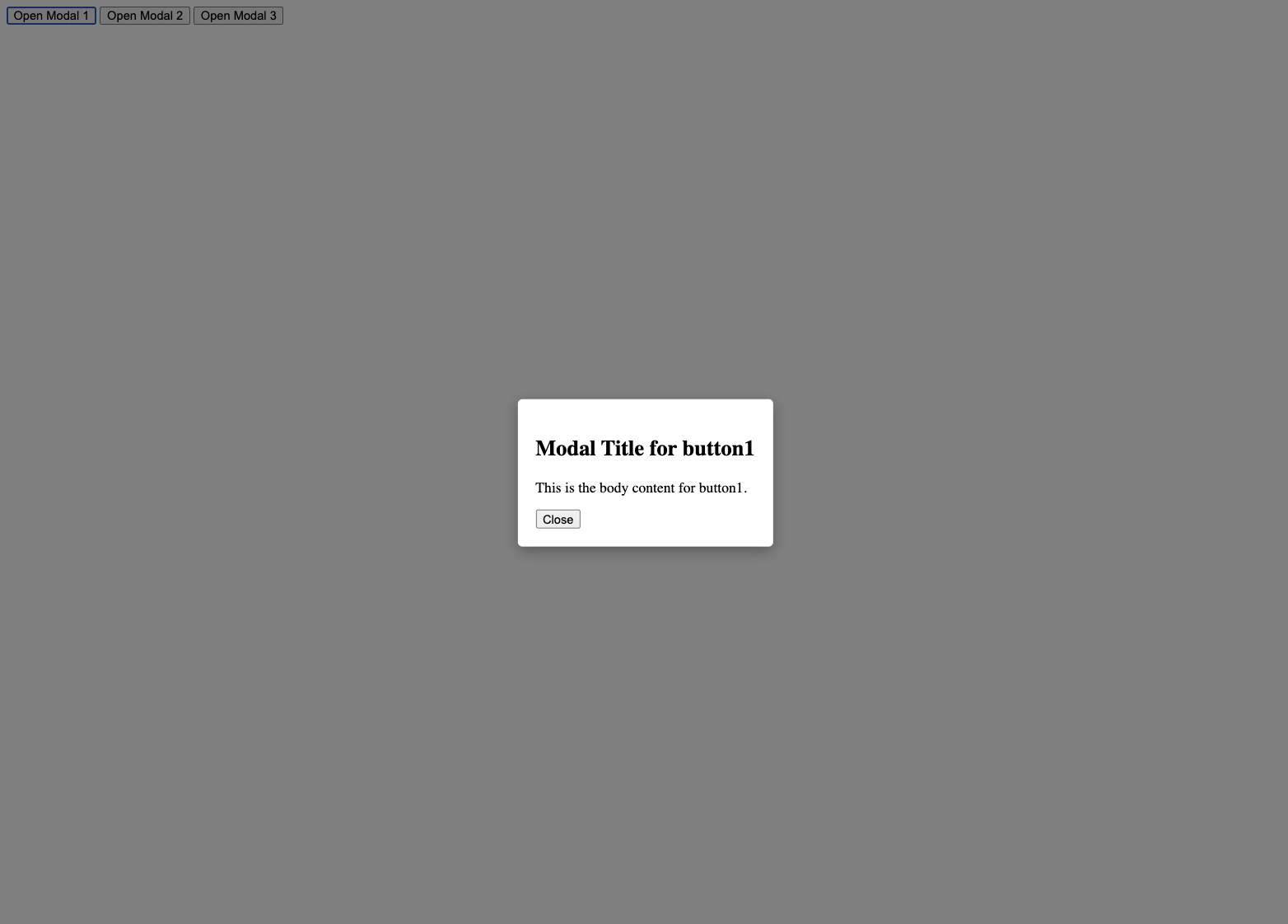
HTML + CSS + JS
<!doctype html>
<html lang="en">
  <head>
    <meta charset="UTF-8" />
    <meta name="viewport" content="width=device-width, initial-scale=1.0" />
    <title>Modal Example</title>
    <style>
      /* Modal styling */
      .modal {
        display: none; /* Hidden by default */
        position: fixed;
        top: 50%;
        left: 50%;
        transform: translate(-50%, -50%);
        z-index: 1000;
        background-color: white;
        padding: 20px;
        border-radius: 5px;
        box-shadow: 0px 5px 15px rgba(0, 0, 0, 0.3);
      }
      .modal-backdrop {
        display: none;
        position: fixed;
        top: 0;
        left: 0;
        width: 100%;
        height: 100%;
        background-color: rgba(0, 0, 0, 0.5);
        z-index: 500;
      }
    </style>
  </head>
  <body>
    <button id="button1">Open Modal 1</button>
    <button id="button2">Open Modal 2</button>
    <button id="button3">Open Modal 3</button>

    <div id="modal" class="modal">
      <h2 id="modal-title">Title</h2>
      <p id="modal-body">Body</p>
      <button id="close-modal">Close</button>
    </div>
    <div id="modal-backdrop" class="modal-backdrop"></div>

    <script>
      // Function to fetch content based on button ID
      async function fetchContent(buttonId) {
        // Dummy content for testing
        const content = {
          title: `Modal Title for ${buttonId}`,
          body: `This is the body content for ${buttonId}.`,
        };
        return new Promise((resolve) =>
          setTimeout(() => resolve(content), 500),
        );
      }

      // Function to open the modal and display the fetched content
      function openModal(content) {
        document.getElementById("modal-title").textContent = content.title;
        document.getElementById("modal-body").textContent = content.body;
        document.getElementById("modal-backdrop").style.display = "block";
        document.getElementById("modal").style.display = "block";
      }

      // Function to close the modal
      function closeModal() {
        document.getElementById("modal").style.display = "none";
        document.getElementById("modal-backdrop").style.display = "none";
      }

      function setupButtonListeners() {
        const buttons = document.querySelectorAll("button");
        buttons.forEach((button) => {
          button.addEventListener("click", async (event) => {
            if (event.target.id !== "close-modal") {
              const content = await fetchContent(button.id);
              openModal(content);
            }
          });
        });
      }

      // Initial setup
      document
        .getElementById("close-modal")
        .addEventListener("click", closeModal);
      setupButtonListeners();
    </script>
  </body>
</html>
Step-by-Step Description of the Solution without Code:
- HTML Setup: • Create three buttons that will trigger the modal. • Add a hidden modal structure with a title, body, and close button in your HTML.
- CSS Setup: • Style the modal to be centered on the screen with a backdrop that covers the entire page. • Initially, set the modal to be hidden (display: none).
- JavaScript Setup: • Attach click event listeners to the buttons. When a button is clicked, fetch the content for the modal asynchronously using fetch(). • Populate the modal’s title and body with the fetched content. • Display the modal by changing its CSS from display: none to display: block.
- Modal Close Functionality: • Attach an event listener to the close button to hide the modal when clicked.
Elementary Example with Step-by-Step Breakdown:
Let’s consider Button 1:
• Step 1: User clicks Button 1. • Step 2: fetchContent function is called with button1. • Step 3: Content fetched from /content/button1. • Step 4: openModal is called with the fetched content. • Step 5: Modal is displayed with the new title and body.
More Complex Example:
If Button 2 has to load larger content:
• Step 1: User clicks Button 2. • Step 2: fetchContent is called with button2. • Step 3: Content is fetched from /content/button2, taking slightly longer. • Step 4: Once content is available, openModal displays the content.
Description of Time and Space Complexity:
• Time Complexity: The time complexity is O(1) for the modal operations, but the fetching of content depends on the network latency and can be considered O(n) based on the data size. • Space Complexity: The space complexity is O(1) as only the modal content is updated without holding additional data in memory.
Proof of Algorithm Correctness:
The algorithm is correct because it guarantees that the modal content is fetched and updated before the modal is displayed. The asynchronous fetching ensures that the UI remains responsive.
Comparison with Other Solution Methods:
Using a Framework: • Advantages: Easier state management. • Disadvantages: Overhead for a simple task. Traditional AJAX: • Advantages: Works in older browsers. • Disadvantages: More verbose and less readable code.
Single event listener
If you want to make use of a single event listener for multiple buttons that open different content in the modal, you can achieve this by using event delegation or by assigning a common class to all buttons and handling the event based on the button clicked.
- Assign a Common Class to All Buttons: Give all the buttons that should trigger the modal a common class, e.g., modal-trigger.
<button class="modal-trigger" data-id="1">Link 1</button>
<button class="modal-trigger" data-id="2">Link 2</button>
<button class="modal-trigger" data-id="3">Link 3</button>
- Add a data-id Attribute: Use a data-id attribute (or similar) to distinguish which button was clicked. This ID can be used to determine which content to load.
- Attach a Single Event Listener: ach one event listener to the parent element that contains the buttons, or directly to the document if there is no suitable parent. Use the event target to determine which button was clicked.
document.addEventListener("click", async function (event) {
  // Check if the clicked element has the class 'modal-trigger'
  if (event.target.classList.contains("modal-trigger")) {
    // Get the data-id value to identify the button
    const id = event.target.getAttribute("data-id");

    // Fetch the content based on the button ID
    const content = await fetchContent(id);

    // Open the modal with the fetched content
    openModal(content);
  }
});

// Example of fetchContent function
async function fetchContent(id) {
  const response = await fetch(`/content/${id}`);
  return response.json();
}

// Example of openModal function
function openModal(content) {
  document.getElementById("modal-title").textContent = content.title;
  document.getElementById("modal-body").textContent = content.body;
  document.getElementById("modal-backdrop").style.display = "block";
  document.getElementById("modal").style.display = "block";
}

// Closing modal (assuming you already have a close button)
document.getElementById("close-modal").addEventListener("click", () => {
  document.getElementById("modal").style.display = "none";
  document.getElementById("modal-backdrop").style.display = "none";
});
How This Works:
• Event Delegation: The event listener is attached to the document (or a suitable parent). When any button with the class modal-trigger is clicked, the event bubbles up to the document, where the listener handles it.
• Dynamic Content Loading: The data-id attribute on each button is used to identify which content to load when the button is clicked.
• Single Event Listener: You only have one event listener managing all the modal triggers, reducing the number of listeners and making the code cleaner and easier to maintain.
This method is efficient and keeps your JavaScript codebase manageable, especially when dealing with multiple buttons that perform similar actions.